Within the Visual Properties dialog you control settings that affect the appearance of the various drawing objects, click on the  button and the following dialog will appear:
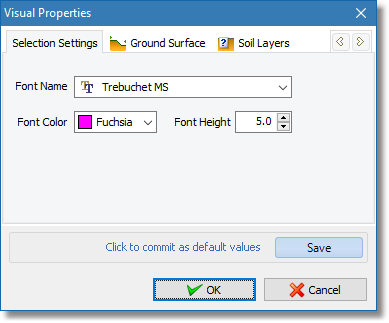
Visual properties dialog
The dialog has several sections, you can navigate using the arrow buttons  that appear on the top right of the window.
•Selection Settings: Every time you click on a drawing object, it can be selected and the software will draw the available selection points using the font properties specified in this section.
•Ground Surface: In this section you can define the width and color of the line used for the ground surface object.
•Soil Layers: For the soil layer objects you can define font properties for the label that appears and also the boundary line color and width.
•Load: In this section the font properties for the load object can be set and also the line width and color. For constant load object Height1 is a property that is associated to the height of the object and for triangular loads Height1 and Height2 define the start and end height of the object respectively.
•Helper Nodes: In this section the font properties and point size of the helper node can be set. If the Use Simple Point Mark check box is checked then SimSlope will draw a simple asterisk.
•Slice Figure: Slice objects will be draw using the properties in this section.
•Dim Lines: In this section you can define the visual properties of the dimension lines you can draw, like the font properties, color and various end types.
Clicking the OK button the software will apply the defined settings to the objects that already exist on the drawing area. If you click the Save button, the current settings will be stored and will be used as default values for any new project file.