On the ground surface layer right click on the surface object and select the Properties command from the pop up menu that appears (alternatively you can double click on the ground surface object). The following dialog appears:
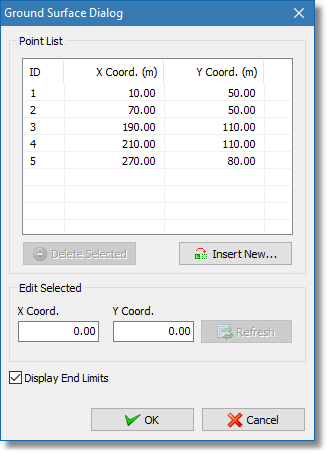
Edit ground surface dialog
In the Point List section you can find the list with the points and coordinates of the surface polyline. You can insert or delete a point using the Delete Selected and Insert New... buttons. To modify the selected point coordinates simply input the new coordinated in the X Coord. and Y Coord. edit boxes and click on the Refresh button, this will temporary save the new coordinates but in order for the ground surface object to be updated you need to click on the OK button.
If the Display End Limits box is checked the software will draw vertical lines over the first and last point of the ground surface object to visually indicate the search area where the software will try to find the critical failure surface.