In order to edit the drawing objects you first need to activate the layer that holds the object to be edited. The software uses the following 6 layers in the below order:
•Ground Surface Layer: This layer holds one object only, the ground surface object
•Soil Layer: This layer holds all the soil layer objects
•Load Layer: This layer holds all the line load objects
•Water Level Layer: This layer holds the phreatic surface object
•Results Layer: This layer holds the calculated critical surface and slices objects
•Utilities Layer: This layer holds all other objects like helper nodes, text, axis, FoS memo and soil memo objects
To change the active layer (current active layer name appears at the bottom of the application window) right click anywhere on the drawing area (except on an object that belongs to the current active layer) and the following pop-up menu will appear:
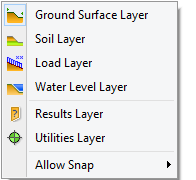
Layers pop up menu
From the list that appears select the name of the layer you need to activate. Now you can select objects and edit them (when applicable) either by double clicking on them, or by click and dragging them to move them.