The Soil Surface command will enable the input of the free ground surface of your slope profile. To enable drawing this object click on the  button (in case a surface object already exists in the drawing area this command will do nothing) and move the mouse cursor inside the drawing area. The mouse pointer will appear as a cross and you are now ready to define the ground surface geometry. Left click on the drawing area to define the start point of the ground surface, now while you move the mouse a trace of the line segment will be shown.
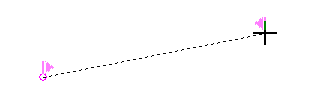
Trace of the line segment
Left click on another point to fix the first line segment and continue this procedure until you have input all line segments necessary. To accept the ground surface right click anywhere on the drawing area. When the ground surface object is inserted it will be displayed using the properties defined in the Ground Surface section of the Visual Properties dialog
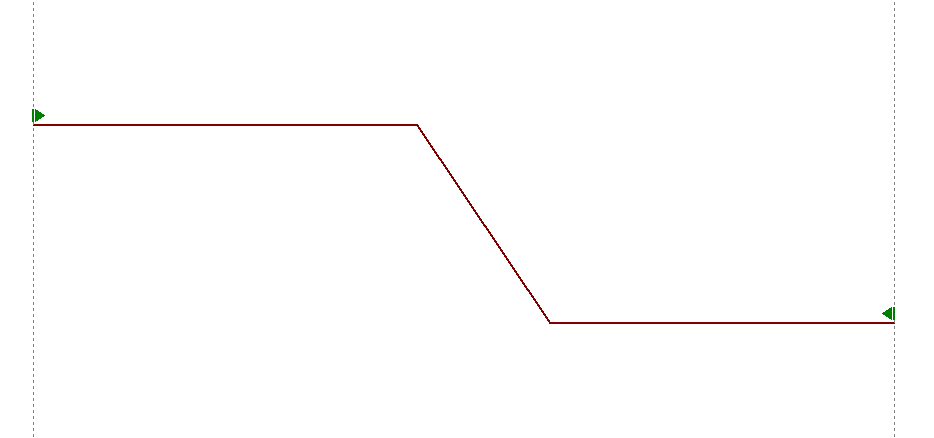
Soil surface object
At the start and end point of the surface polyline the software will draw a green rectangle mark and also a vertical dotted gray line to visualize the calculation limits for the failure surface. All trial surfaces will be created inside the minimum and maximum X coordinate of the surface polyline and no point outside these limits will exist.
Note While drawing the surface polyline, holding the SHIFT key on your keyboard will apply a constrain and only horizontal or vertical segments are accepted. |
If the Auto Clip Soil Layers feature is enabled, SimSlope will automatically clip defined soil layer objects inside the area that it is defined from the soil surface object.
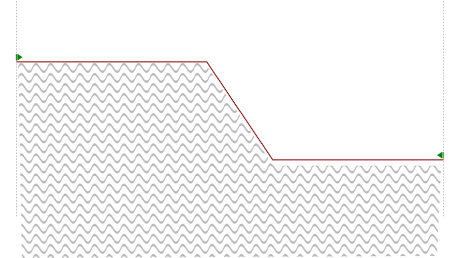
Clipping area defined from ground surface