On the soil layer right click on the soil object and select the Properties command from the pop up menu that appears (alternatively you can double click on the soil layer object). The following dialog appears:
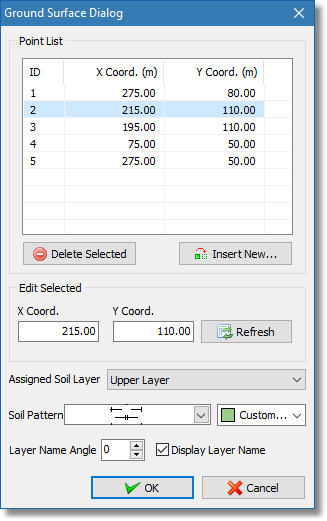
Edit soil layer dialog
In the Point List section you can find the list with the points and coordinates of the soil layer polyline. You can insert or delete a point using the Delete Selected and Insert New... buttons. To modify the selected point coordinates simply input the new coordinated in the X Coord. and Y Coord. edit boxes and click on the Refresh button, this will temporary save the new coordinates but in order for the ground surface object to be updated you need to click on the OK button.
The Assigned Soil Layer drop box contains the current soil material of the selected soil layer. If you want to assign another one simply select another material from the drop down list (alternatively you can right click on the soil layer object in the drawing area and from the pop up menu that appears select the appropriate soil material).
A soil layer object by default is filled with the color of the assigned soil material. Additionally you can define a pattern of predefined shapes that can be used to fill the soil layer area, simply select a pattern from the Soil Pattern list and the color from the drop down list box next to it.
Once you close the edit dialog the software will ask if it should recalculate the soil polygon based on the changes made and the ground surface object, in case you did not make any changes to the points coordinates you can dismiss this dialog by clicking Cancel.